Elyno practical guide
From first document to a ready report.
Follow this simple path. Elyno performs the routine work and clearly shows anything that still needs your decision.
Start the quick guideChoose a category on Home, add a clear photo or PDF, then check the recognised data before saving.
Create your account and business profile
In Profile, set company and tax details, languages and accountant access. Subscription lets you choose a plan; the store confirms the price and any trial.
Profile → Business profile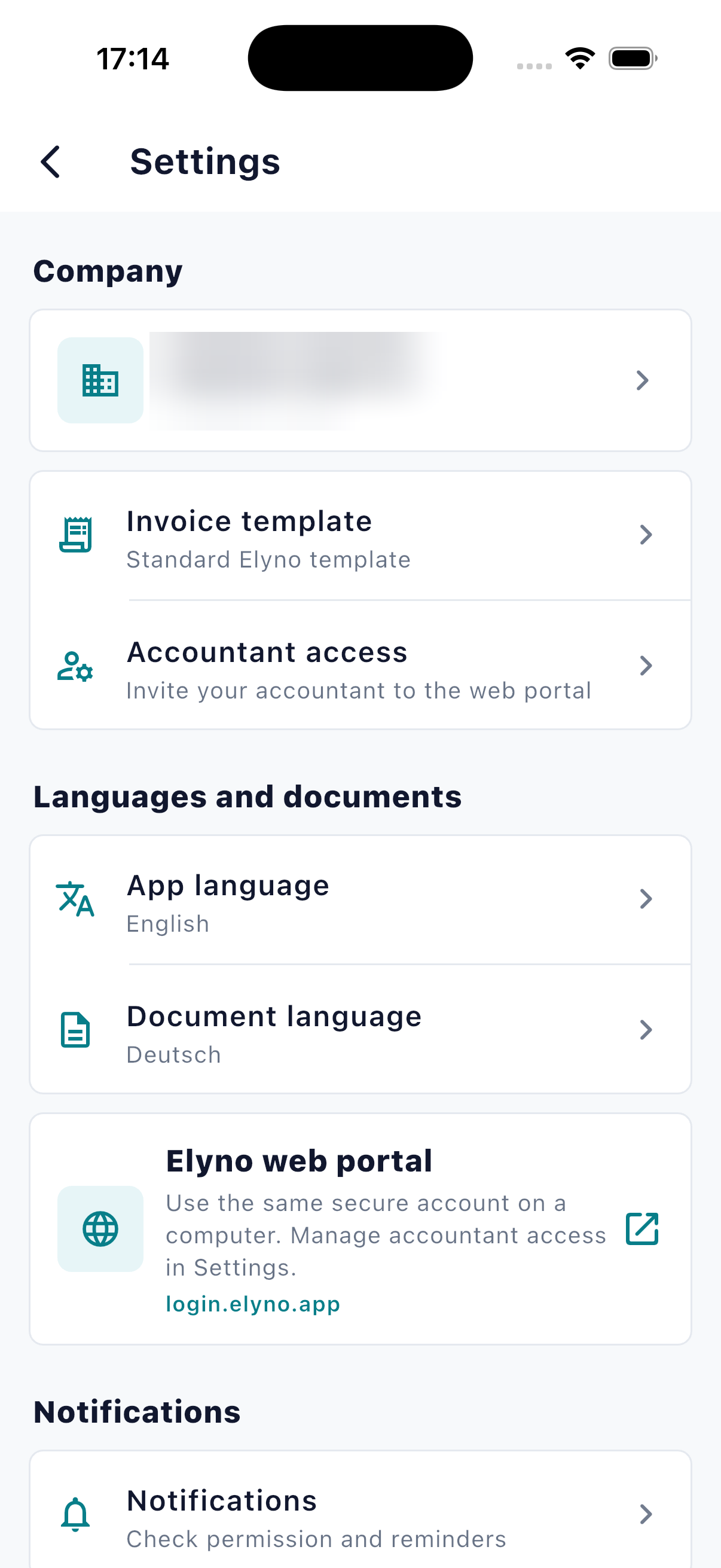
Add an income, expense or letter
Choose the month at the top of Home, then Income, Expenses or Letter decoding. Take a photo or select a PDF or image.
Home → choose a category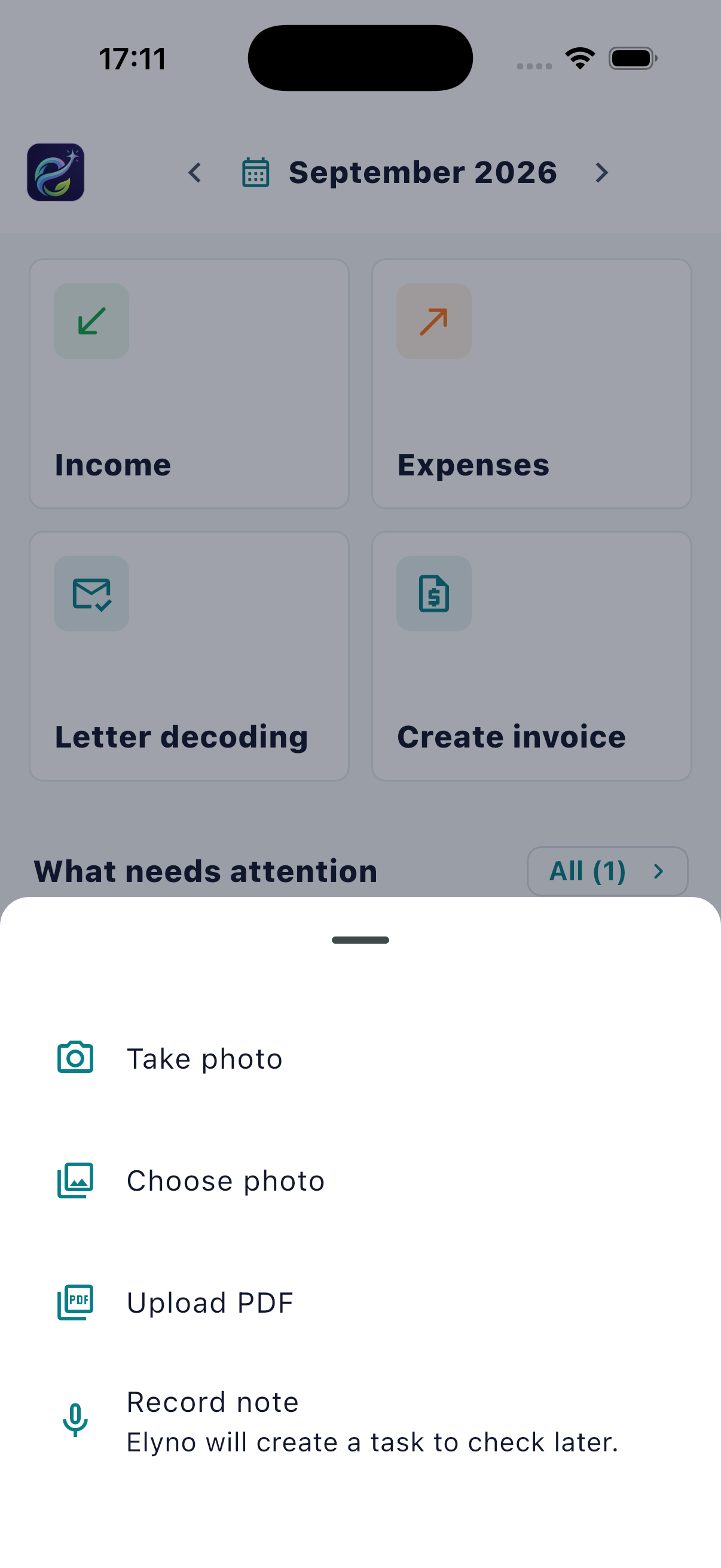
Check or correct the document data
After recognition, check the type, date, amount and VAT before saving. Later, open the document and choose “Edit document data”. On upload, a warning appears only if the document month differs: confirming saves it in the selected month; cancelling saves nothing. The document date stays unchanged.
Document → Edit document data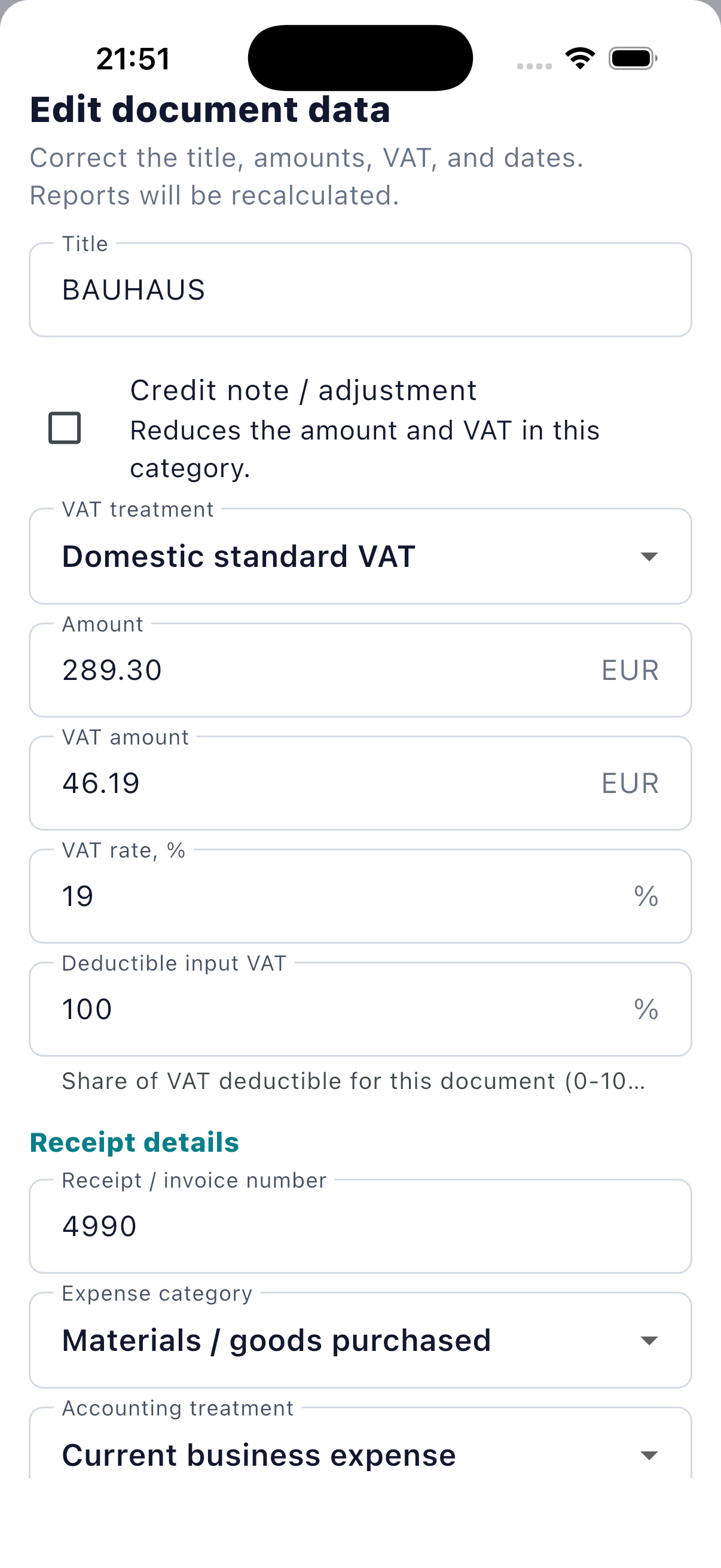
Handle what needs attention
Needs attention brings together document checks, deadlines, bank matches and owner/director funds. Open a card and follow its action; different tasks need different actions.
Home → Needs attention; Documents → Deadlines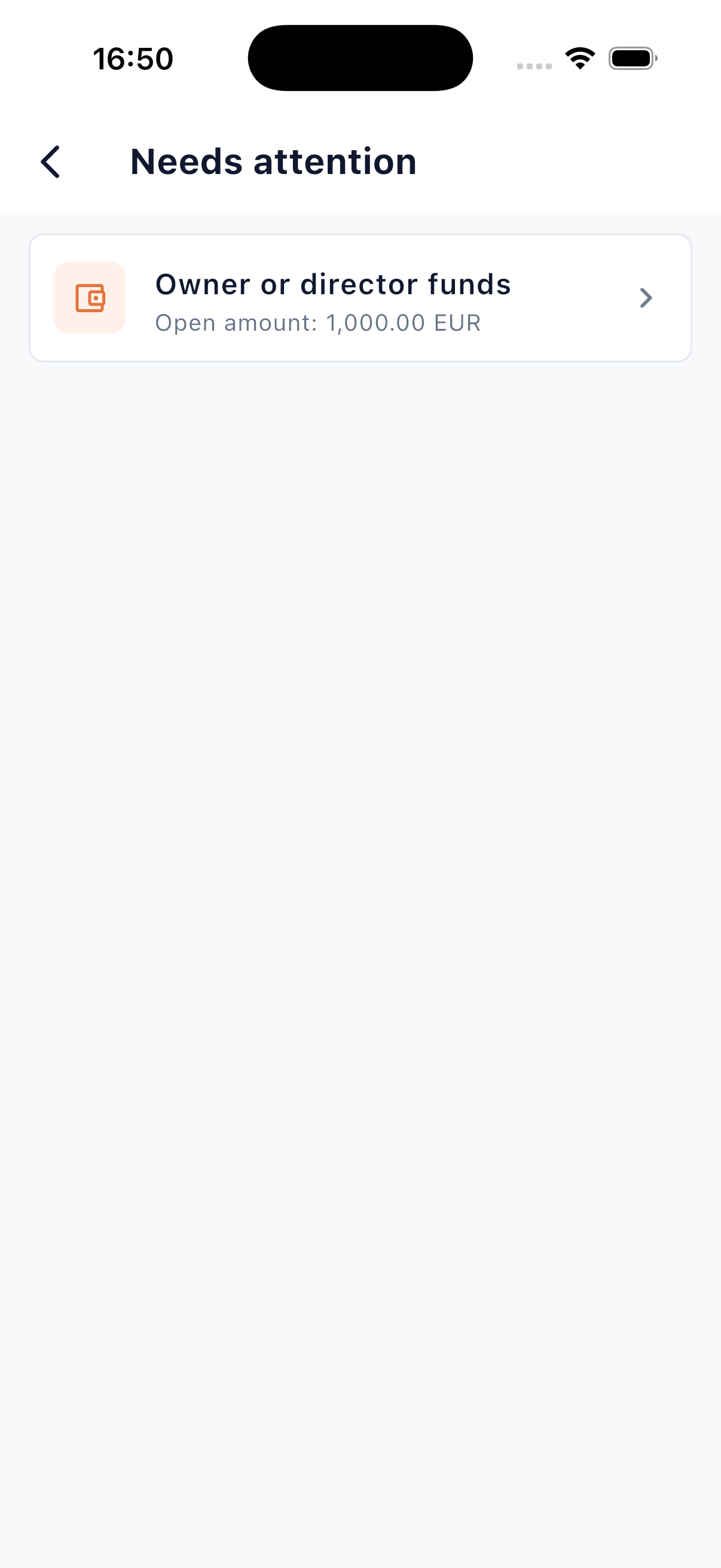
Reconcile documents with your bank statement
Upload a CSV or PDF bank statement for the selected period. Elyno matches transactions with documents and clearly separates matched items, missing documents and items that need manual review.
Documents → Bank matching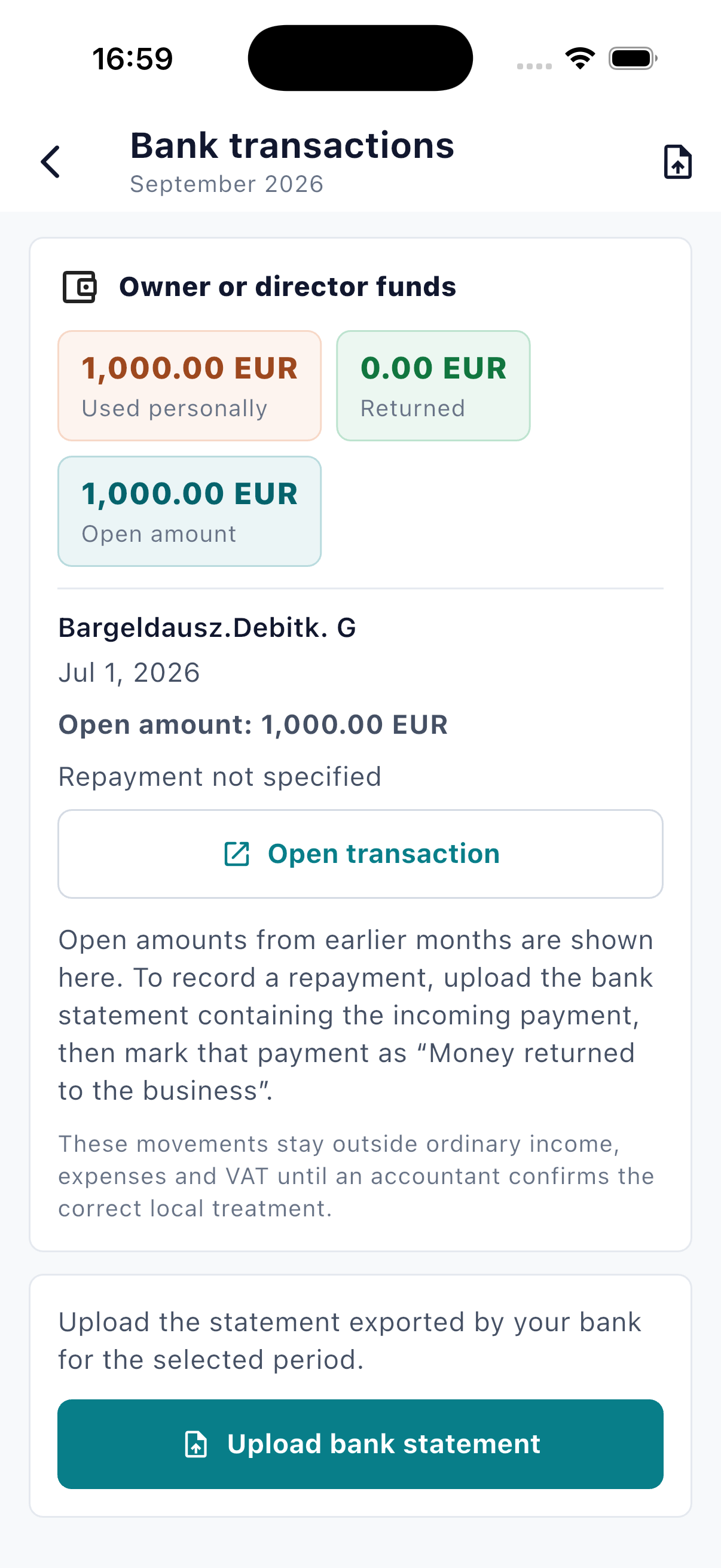
Create invoices and accountant packages
Create invoices from Home and mark them paid only after payment. Open Documents → Package for accountant to export a month or year as PDF or ZIP for your accountant to check.
Home → Create invoice; Documents → Package for accountant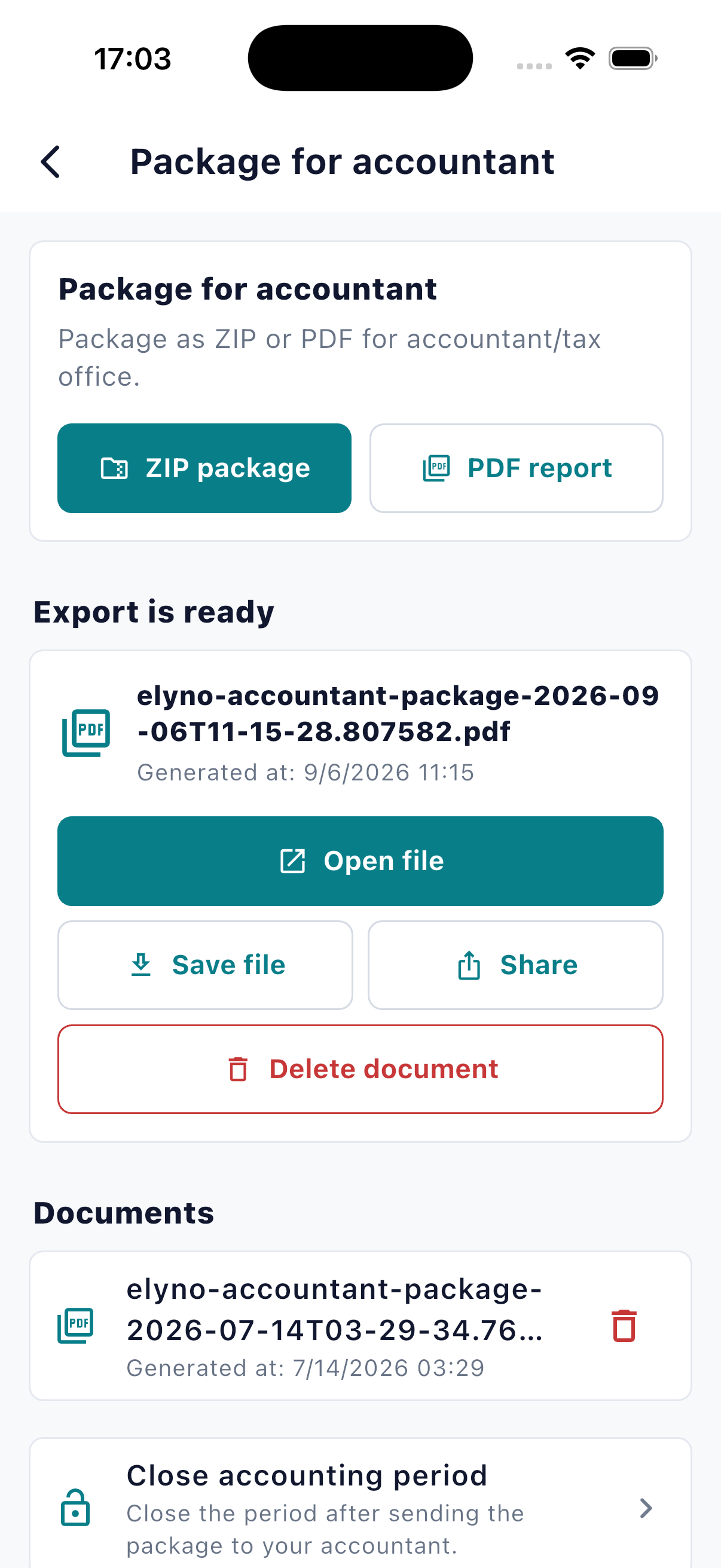
Ask questions about your documents or the app
Ask AI Chat about documents, calculations or app features. It uses the selected period and business profile. Availability and usage limits depend on your plan.
Bottom navigation → AI Chat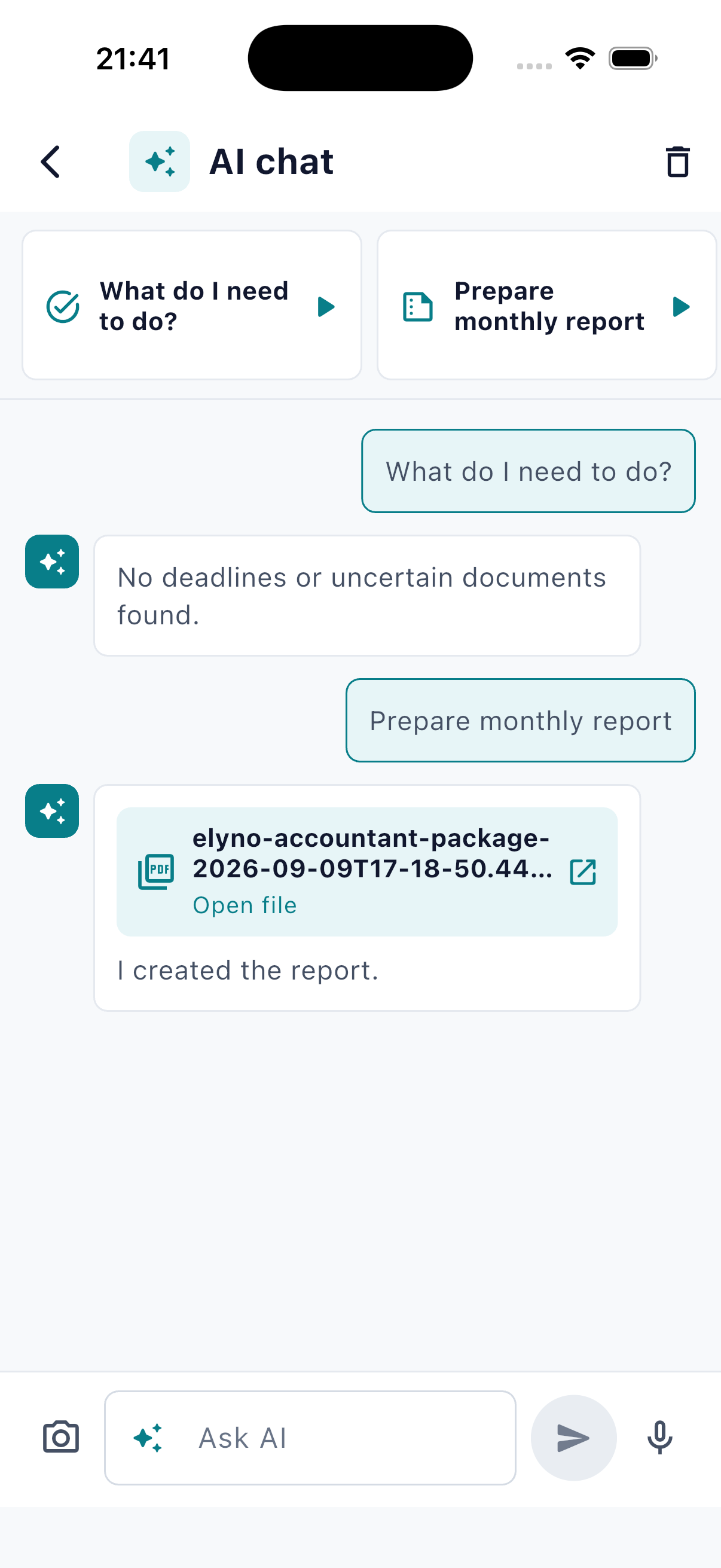
Contact support when something is unclear
Create a support request, choose Question, Improvement or Error, describe the issue and attach up to five screenshots. Replies from the Elyno team appear in the same request.
Profile → Support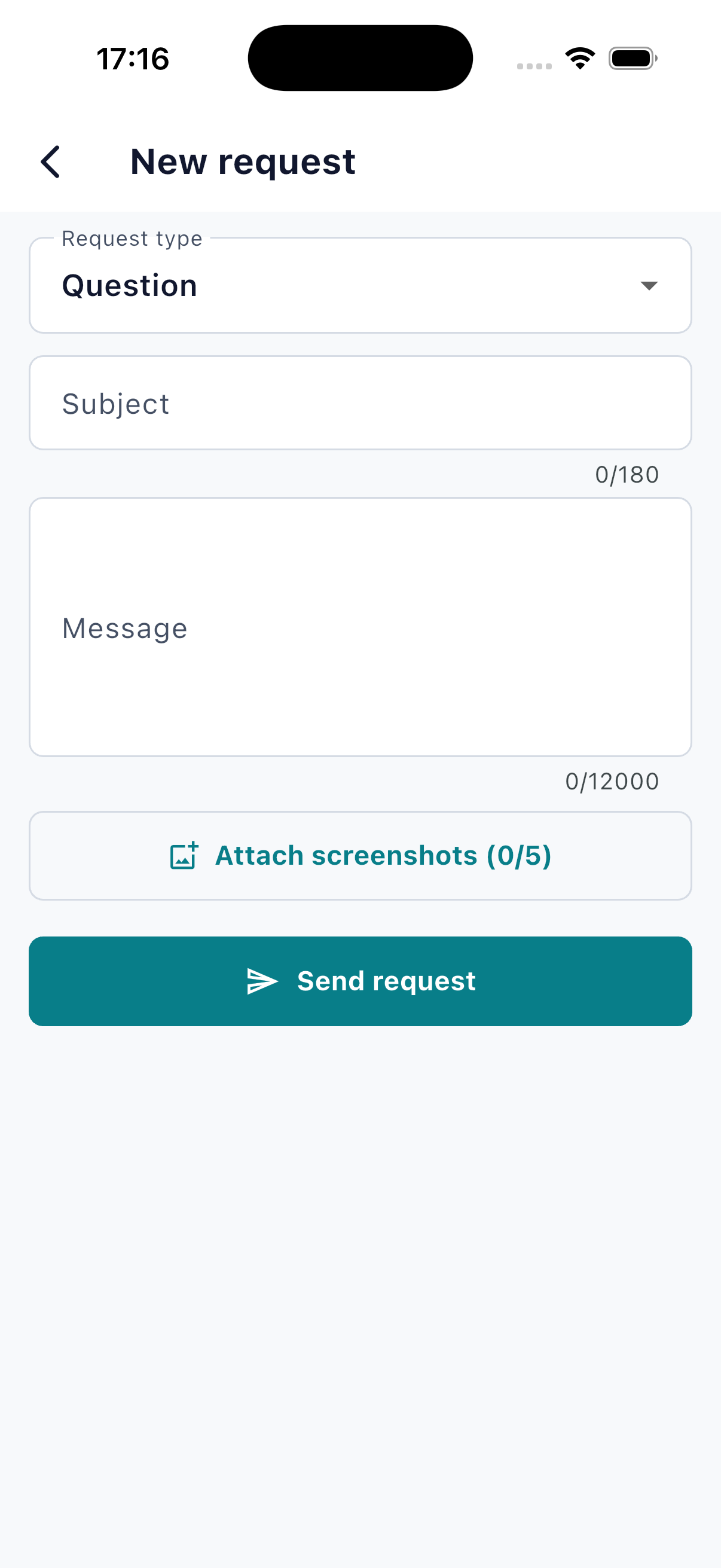
For better results
Three small habits make Elyno more accurate.
- Photograph the whole document in good light and keep text in focus.
- Choose the correct month or year before reviewing totals or exporting.
- Check fields marked as uncertain before saving them to the report.
Common questions
Helpful answers before you begin.
What if Elyno chooses the wrong category?
Change the category during review. The original file remains attached, and uncertain documents should stay in Needs review until you confirm them.
Does Elyno replace a tax adviser?
Elyno organises documents, performs routine calculations and prepares information. Tax or legal decisions that require professional certainty should still be checked with a qualified local specialist.
Can I use Elyno on another device?
Yes. Sign in with the same account to access the business profile and synchronised data available for that account.

You are ready to use Elyno.
Start with one clear photo or PDF. Elyno will show you what happens next.